7 WSOP Play Settings You Need to Tweak Right Now
Most players download the World Series of Poker app and jump straight into a cash game without ever touching the settings menu. Big mistake. Hidden within that little gear icon are controls that can save your battery, improve your focus, and essentially secure your account from being lost forever.
Whether you are collecting free chips daily or grinding tournaments, these settings will help you play longer and smarter.
Here are the critical settings you should adjust immediately.
1. The "Precision" Toggle (Vibration)
By default, the WSOP app loves to vibrate. Fold? Vibrate. Win? Vibrate. Turn actions? Vibrate. This haptic feedback is cool for the first five minutes, but it's a battery killer during long sessions.
How to change it:
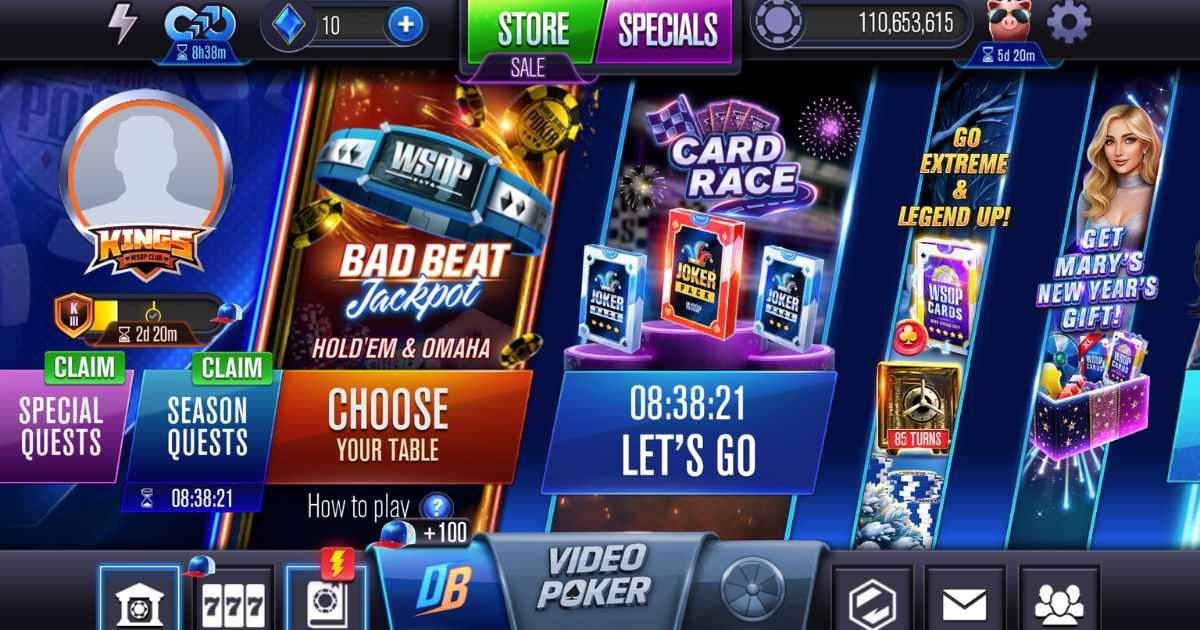
- Tap the Gear Icon (Settings) in the top-right lobby.
- Find Vibration.
- Toggle it OFF.
2. Silence the Table Talk (Sound Effects)
The chip-shuffling sound effect is iconic, but the constant "ding" of notifications or the background music can be distracting—or annoying to your spouse next to you. You can separate "Sound Effects" (deal sounds, chips) from "Music". We recommend keeping effects low (for cues) and killing the music entirely.
3. Account Binding: The "Panic Button"
This isn't just a setting; it's insurance. If you are playing as a "Guest", your chips live and die on that specific phone. If you lose your phone, you lose your bankroll.
Go to Settings > Account and bind to:
- Facebook: Best for playing across devices (PC + Phone).
- Apple/Google: Best for privacy and quick login.
- Email: A solid backup.
Pro Tip: Binding your account is also required to redeem most WSOP promotion codes.
4. Frame Rate (Battery Saver)
Buried in the advanced options (sometimes labeled as "Low Graphics" or "Battery Saver"), you can reduce the animation quality.
- High Quality: 60fps, buttery smooth, burns phone hot.
- Low Quality: 30fps, slightly choppy card flips, but double the play time.
5. Privacy: Hide Your Hand History
Did you know friends can track your big wins (and losses)? If you want to grind in stealth mode, check the Privacy tab. You can often toggle off "Share Big Wins" or "Online Status" to keep the vultures away.
6. Notifications: The "Chip Alert" Only
WSOP sends a lot of notifications. "Come play!" "Tournament starting!" Don't turn them all off. You absolutely want the Free Chip Bonuses notifications enabled. These often drop 4-hour bonuses directly to your lock screen. Go to your phone's system settings -> Notifications -> WSOP and ensure they are on, but maybe silence the sound so they just pop up visually.
Need more notifications? Check our daily archive to ensure you never miss a drop.
7. Find Your Support ID
Finally, scroll to the bottom of the settings page. You will see a long alphanumeric string (e.g., RID: 123456...).
Screenshot this now.
If you ever get locked out, hacked, or banned by mistake, Customer Support will ask for this ID. If you can't provide it, they often can't help you.
Summary
The WSOP app is sleek, but it's designed to be flashy, not efficient. A few tweaks in the settings menu can transform your experience from a battery-draining loud festival into a focused, serious poker session.
Ready to play? Don't forget to claim your WSOP free chips before you hit the tables!
Notification Strategy: Catch the Bonuses, Cut the Noise
You already know to keep the free chip bonus alerts switched on. The harder question is what to do with everything else, because every alert you allow is a trade: an interruption now in exchange for a chance at value.
Bonus drops and limited-time offers are usually worth the buzz. Generic "come back and play!" pings are not. The real danger is notification fatigue — once your lock screen fills up with marketing, you start swiping everything away on reflex, including the drops you actually wanted.
- Keep on: free chip bonuses and anything tied to timed collections.
- Mute or kill: generic reminders and promos you would have seen in the lobby anyway.
- Re-check monthly: apps quietly add new notification categories over time, and they usually arrive enabled.
And if you do miss a drop, it is not gone forever. Recent bonus links are collected in our daily archive, so a silenced phone does not have to cost you chips.
Comfort Settings: Easy on the Eyes, Easy on the Hands
Sound and vibration are not just battery decisions — they are comfort decisions. If a soft haptic tap helps you notice when the action is on you, keep it. If an hour of chip-clinking and jingles wears you down, cut it. The right setup is whatever lets you focus longest without fatigue, and that is different for every player.
The same logic applies to how the table looks. Where your device and app version let you adjust card or table style, pick whatever gives the clearest contrast between the suits and the felt. Misreading a card because of a fancy deck design is a self-inflicted bad beat.
Your phone's own accessibility options stack on top of all this. Larger text, reduced motion, and sensible screen brightness matter more the longer you sit — and if your eyes are telling you to stop, that is a fine reason to bank your chips and come back tomorrow.
Marathon Mode: Battery and Data for Long Sessions
The in-app battery saver is a good start, but a deep tournament run calls for a phone-side plan too. A dead battery on the final table is the worst way to bust.
- Lower your screen brightness. The display usually drains more power than the game itself.
- Prefer Wi-Fi over mobile data. You get a steadier connection, fewer mid-hand disconnects, and no data-cap anxiety.
- Close background apps first. Streaming and social apps quietly eat battery and bandwidth while you play.
- Download app updates on Wi-Fi. Updates are where the real data goes — gameplay itself is comparatively light.
If your sessions regularly outlast your phone, move the marathon to a bigger screen. Our guide to playing WSOP on PC walks through it — same bound account, same chips, zero battery anxiety.
The Last Habit: Re-Check Everything After an Update
App updates giveth and taketh away. A big version bump can reset a toggle you changed months ago, re-enable notifications you deliberately muted, or add new options buried where you will never think to look.
So make it a habit. After any major update, spend thirty seconds in the gear menu:
- Confirm your sound, vibration, and graphics choices survived.
- Skim the notification options for new categories that arrived switched on.
- Verify your account is still bound and your Support ID screenshot is still current.
Settings work is boring, which is exactly why most players never do it — and why the ones who do get a quieter, smoother, longer grind out of the same app. Dial everything in, audit it after updates, and spend your attention where it actually earns chips: on the decisions at the table. When you are ready to put that focus to work, our tournament tips are a good next stop.